Help
Accessories
An accessory connects a visible object on the layout to a command-station address and an operational state. Turnouts, signals, decouplers, crossings, turntables and illuminated assets all use the same central definition while retaining behaviour appropriate to their type.
Create a new accessory
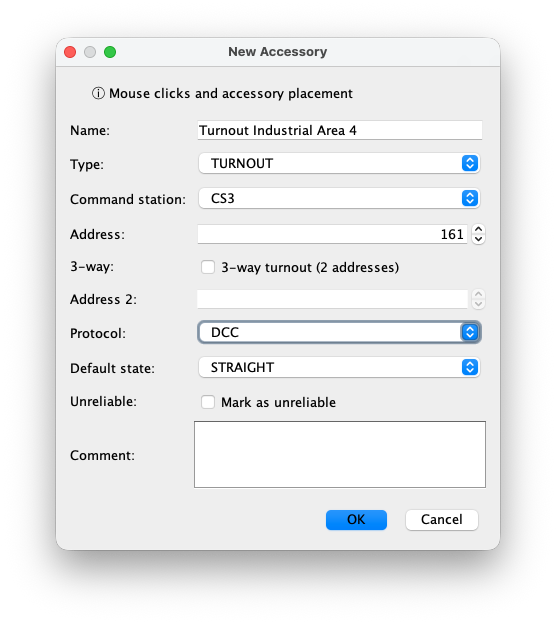
Open New Accessory, complete the definition and press OK. RailKernel then returns to the canvas in accessory-selection mode. Left-click the track, building or placed signal controlled by this accessory. The selected object must match the accessory type. A turnout must be attached to compatible turnout geometry, an ASSET accessory to a building and a SIGNAL accessory to a placed signal. Right-click cancels the selection when you do not want to complete it.
Fields in the New Accessory dialog
The available fields change slightly with the selected type:
- Name
- A unique and recognisable operational name. Use names that remain understandable in the Accessory Monitor, route editor and driving log.
- Type
- Selects the behaviour: TURNOUT, SIGNAL, ASSET, DECOUPLER, CROSSING or TURNTABLE. It also determines the allowed states and which canvas object may be selected.
- Command station
- The configured command station that owns the decoder address and receives switching commands.
- Address
- The decoder address used by the command station. A turntable reserves its required consecutive address range; a crossing is a logical conflict resource and therefore needs no physical decoder address.
- Half
- For a decoupler, selects the applicable half or output of the decoder address.
- 3-way and Address 2
- Enable this for a three-way turnout. Its second motor needs a different second address, allowing LEFT, STRAIGHT and RIGHT states.
- Protocol
- The decoder protocol, such as DCC or Motorola. It must agree with the physical decoder and command-station configuration.
- Default state
- The state RailKernel uses before a verified live state is available. The choices depend on the type: for example STRAIGHT/DIVERGING, RED/GREEN or OFF/ON.
- Unreliable
- Marks hardware that should be treated cautiously. Route comparison can prefer alternatives containing fewer unreliable accessories. This is a diagnostic aid, not a substitute for repairing recurring hardware faults.
- Comment
- Free operational notes, such as decoder location, wiring details or a known maintenance issue.
Initial state at startup
The default state prevents an accessory from being undefined while a project is being loaded. After a command station connects, RailKernel attaches its listeners and requests or imports the available live accessory states. Matching project accessories are then updated from the command station. Support depends on the station protocol: when no authoritative state can be read, the configured default remains the safe initial representation until an event or command establishes another state. Always verify that the displayed and physical positions agree before automatic driving.
Switch an accessory
Right-click the accessory on the canvas and choose the required state. A normal turnout offers straight and diverging; a three-way turnout offers left, straight and right; other switchable types offer their relevant aspect or toggle command. You can also operate accessories from the Accessory Monitor. RailKernel sends the command through the accessory’s selected command station and updates the displayed state. Manual switching is withheld while an accessory is reserved by an automatic movement, because changing it could invalidate the protected route.
Accessory Manager
The dockable Accessory Manager compares the accessories in the layout with those read from the connected command stations. Select All for the complete overview or one command station to inspect and manage it separately. The table deliberately shows both Layout name and CS name: matching uses command station, protocol and primary address, so the two names do not have to be identical. The status line totals the comparison results for the current selection. Refresh reads the command stations again.
Comparison statuses
Each row describes the relationship between RailKernel’s layout and one command station:
- Matched
- One layout accessory and one command-station accessory have the same station, protocol and primary address. Different names are allowed.
- Layout only
- The accessory exists in the RailKernel layout but not in the selected command station.
- Command station only
- The command station contains an accessory for which no layout definition was found.
- Conflict
- The address is present on both sides but cannot be matched uniquely, or the protocols differ. Double-click the row to see the reason.
Synchronize accessories with a command station
Sync Accessories with CS is enabled only when one command station is selected. After confirmation, RailKernel creates layout-only accessories in that station. Supported command-station-only turnout, double-slip and three-way definitions are removed, while conflicts are deleted from the station and re-created from the layout. A modal progress window reports every operation and remains visible when finished until you press OK. The manager then reads the command station again. When everything is already Matched, there are no differences to synchronize.
CS3 supports the complete synchronization described above for supported turnout-like accessories. ECoS synchronization uses the ECoS object identity discovered by RailKernel; deletion is attempted only when that valid object identity is available. Unsupported differences remain visible for manual handling.
Delete from the correct side
Delete follows the row status. Layout only removes the definition from the layout; Command station only removes it from the command station; Matched and Conflict remove both, deleting from the station first and removing the layout definition only after that succeeds. A layout accessory reserved by an active route cannot be deleted. The same rules are used by the canvas context menu.
Accessory Monitor
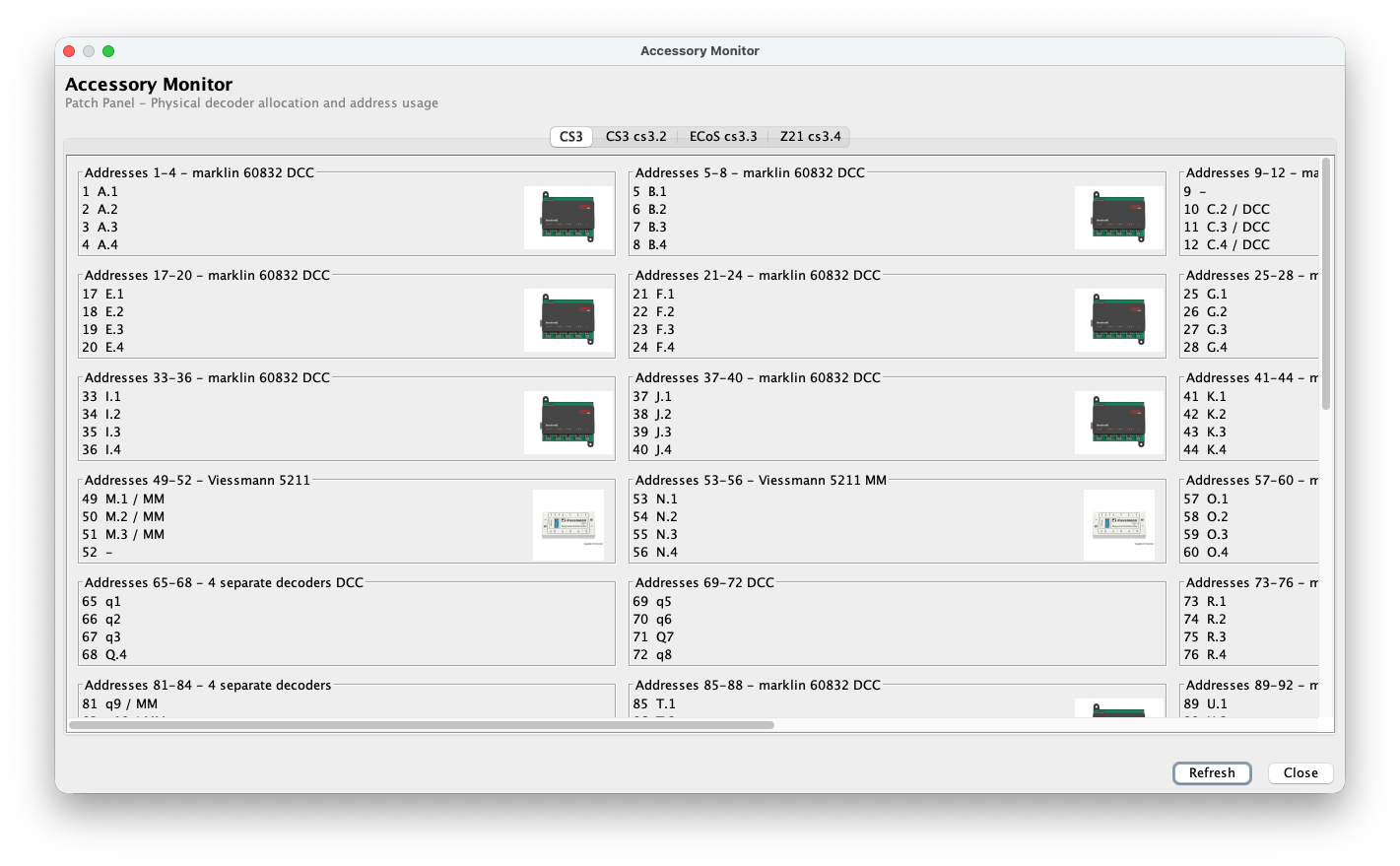
The Accessory Monitor is the physical patch-panel view. It groups addressed accessories per command station and shows how logical addresses map to real decoder hardware. Accessories without a valid address do not occupy a decoder block.
Address blocks and physical devices
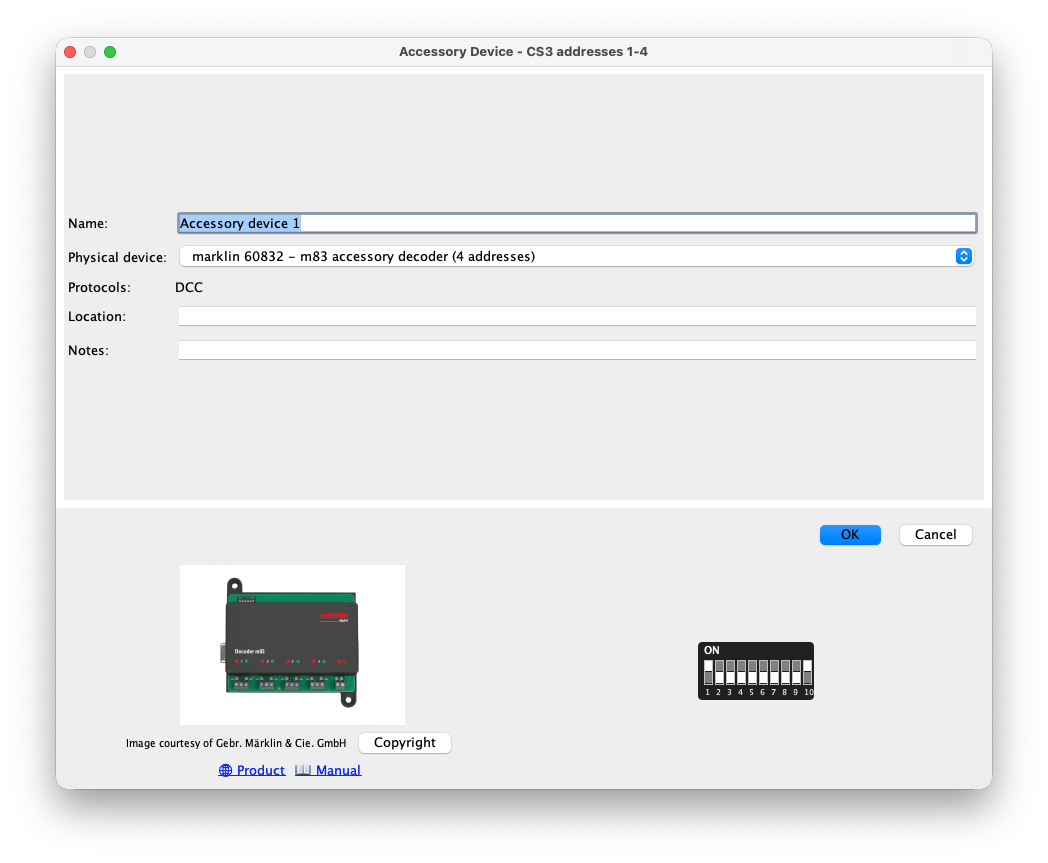
The Accessory Monitor divides addresses into blocks of four: 1–4, 5–8, 9–12 and so on. This matches the common four-output accessory decoder and makes unused or conflicting addresses immediately visible. Double-click a block to describe the hardware connected to it. You can choose one four-address physical decoder, or specify four separate one-address decoders. Store a useful name, protocol, physical location and notes. The selected product is saved with the project and displayed in the patch panel.
Accessories in routing
A route contains the required state of every relevant accessory between its blocks. Before a train may enter its driving corridor, RailKernel checks whether those accessories are available and reserves them for that train. Only after the reservation succeeds does RailKernel command the required positions, with a short interval between hardware commands where necessary. Another train cannot claim or manually change the same accessory while the reservation is active. When the train has safely cleared that part of the route, the reservation can be released.
Device details and DIP switches
The device detail screen combines the address block with the accessory-device catalogue. It shows the physical decoder, supported protocol, product image, product page, manual, location and notes. For supported devices RailKernel calculates and draws the required DIP-switch positions for that address block. You therefore no longer need to search through a paper booklet or repeatedly calculate switch settings by hand; the wiring information stays next to the decoder definition in the project.