Help
Feedback Contacts
Feedback contacts tell RailKernel which parts of the railway are occupied. Their addresses connect physical detection hardware to elements on the canvas, blocks, action rules and automatic driving.
Create and place a feedback
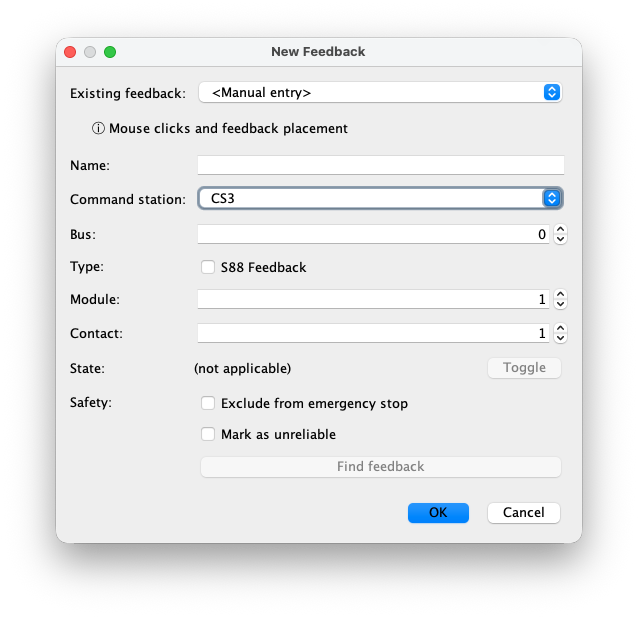
Open New Feedback, enter or select the detector address and press OK. RailKernel then waits for you to select the detected rail section on the canvas. A feedback may cover one or more connected track elements; the exact left-click, modifier-key and completion gestures are described in Mouse and Canvas Controls. Use the Mouse clicks and feedback placement link in the dialog to open that section directly.
Fields in the New Feedback dialog
The address must describe the same physical contact as the command station:
- Existing feedback
- Select a feedback discovered in the command station to copy its known name and address, or choose Manual entry when you want to enter the values yourself.
- Name
- A unique operational name used on the canvas, in blocks, monitors, action rules and logs. Choose a name that identifies the physical detection section.
- Command station
- The command station from which RailKernel receives this feedback state.
- Bus
- The feedback bus number. For a CS3 S88 Link this selects bus 0, 1, 2 or 3; the meaning for other command stations follows their driver and protocol.
- S88 Feedback
- Select this for a contact connected through an S88 Link bus. Leave it clear for feedback modules on the command station’s direct feedback connection.
- Module
- The module number on the selected direct connection or S88 bus.
- Contact
- The input number on that module, from 1 through 16. The combination of command station, connection type, bus, module and contact must be unique.
- State and Toggle
- When editing an existing feedback, this shows its current FREE or OCCUPIED state. Toggle is useful for controlled testing; a new definition has no state to toggle yet.
- Exclude from emergency stop
- Prevents changes from this contact from participating in the general emergency-stop handling. Use this only for a detector whose purpose and safety consequences are understood.
- Mark as unreliable
- Records that the detector is known to be unstable or less trustworthy, so the condition remains visible during operation and troubleshooting.
- Find feedback
- When editing, closes the definition workflow and highlights the feedback on the canvas. RailKernel also warns when it is referenced by an action rule.
Feedback Manager
The dockable Feedback Manager compares the feedback definitions in the layout with the feedbacks read from connected command stations. Select All for the complete overview or one command station to work with it separately. The table shows Status, Command station, Layout name and the real CS name, followed by source, bus, module, contact and operational details. Matching uses command station, source type (direct or S88), bus, module and contact; names do not have to be identical. Refresh reads and compares the data again.
Comparison statuses and valid ranges
Each row has one of four comparison statuses:
- Matched
- Exactly one layout feedback and one command-station feedback use the same station, source type, bus, module and contact.
- Layout only
- The feedback is defined in the RailKernel layout but is absent from the command station.
- Command station only
- The command station contains a feedback for which no layout definition exists.
- Conflict
- More than one layout or command-station feedback occupies the same complete physical location, so a unique match is impossible.
Outranged is an additional warning, not a fifth comparison status. Red rows use a module number above the configured bus length reported by that CS3, or above the defined length when no configured value is available. With one station selected, the line beside the selector shows the configured direct CS3 length and S88 Link bus lengths 0 through 3 used for this check. Unknown S88 values are treated as zero when the station reports no S88 buses.
Synchronize feedbacks with a command station
Sync Feedbacks with CS is enabled only for one selected command station that supports feedback deletion. After your confirmation, RailKernel creates supported layout-only feedbacks in the station, deletes command-station-only feedbacks and replaces unambiguous conflicts by deleting the station entries and re-creating the layout definition. Direct feedbacks must use bus 0; S88 Link feedbacks may use bus 0 through 3. A modal progress window reports every operation and remains open until you press OK. The manager then reads the station again. If everything is already Matched, there is nothing to synchronize.
Delete from the correct side
Delete follows the selected row. Layout only removes the RailKernel definition; Command station only removes the station entry; Matched removes both, deleting from the station first and removing the layout definition only after that succeeds. Every operation requires confirmation. A layout feedback used by a block cannot be deleted. Station deletion is available only when the selected command-station driver supports it.
The Feedback Monitor
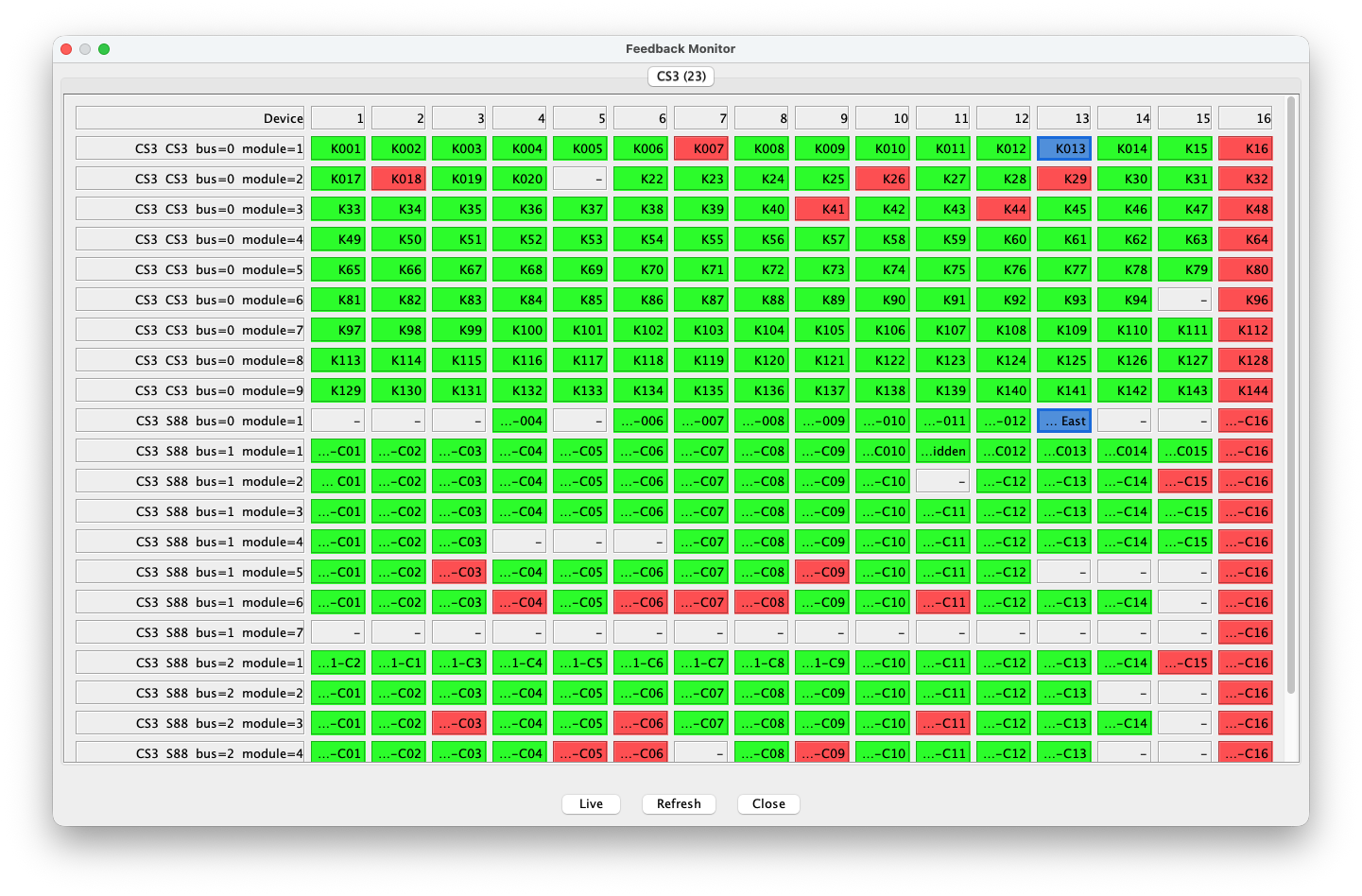
The Feedback Monitor presents the complete configured address space per command station. Each row is a direct or S88 module and each column is contact 1 through 16. Live keeps the view following incoming events; Refresh rebuilds it from the current project and command-station information. Double-click a defined feedback to edit it. Tooltips include the feedback name, associated block and action rules where applicable.
Monitor colours
Green means that a defined feedback is free and red means occupied. Grey cells have no project feedback assigned to that physical address. A thick blue border marks a feedback used by an enabled action rule; while such an action feedback is free, RailKernel uses a blue fill to distinguish it clearly. Free and occupied colours can be changed in Settings, allowing the monitor and canvas to match your preferred contrast and colour perception.
Live and Live: RAW
Live opens a running list of processed state changes for defined feedbacks. Live: RAW is the diagnostic view of all raw feedback events before RailKernel’s normal filtering and suppression. When RAW mode starts, cells have no state colour and all counters are reset. Each received raw change increments the counter at its exact command-station, source, bus, module and contact address. The cell changes from pale to increasingly strong red as the count rises, making unstable inputs, wiring faults and repeating bus traffic immediately visible. Live and Live: RAW are mutually exclusive.
In the example below, the numbers are event counts, not feedback addresses or occupancy values. A healthy quiet contact remains uncoloured. The concentrated red pattern on several contacts of the same S88 area shows immediately where abnormal traffic is occurring. Comparing affected contacts, modules and buses helps distinguish one defective input from a shared module, cable, power-supply or bus problem.

CS3 feedback-bus lengths
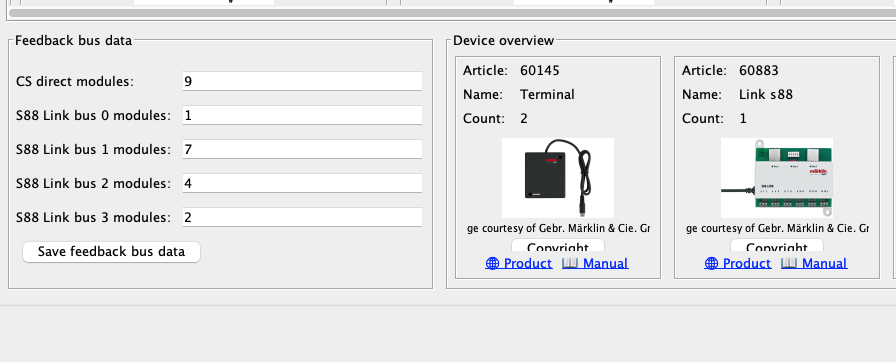
The lower-left Feedback bus data panel in the CS3 command-station overview shows three columns. Defined contains RailKernel’s saved direct and S88 Link module counts. Configured contains the values read from that specific CS3. Calculated derives the required lengths from the feedback definitions in the loaded layout. These values help reveal an undersized configuration or feedbacks assigned to the wrong station or bus. You can edit and save the Defined values. RailKernel never silently changes command-station feedback definitions; creation, deletion and synchronization always require your explicit approval.