
Help
Routes and Automatic Driving
Automatic driving begins with a correctly placed train and turns connected geometry, feedback occupancy, protected accessories and block rules into a safe sequence of reservations and movements.
Simple Move
Choose Simple Move from the context menu of the block containing the placed train. RailKernel opens the destination dialog shown below and can also open the relevant Locomotive Control alongside it. Making that control optional is planned; its speed setting determines the requested starting speed, while automatic block speed limits remain authoritative during the run.
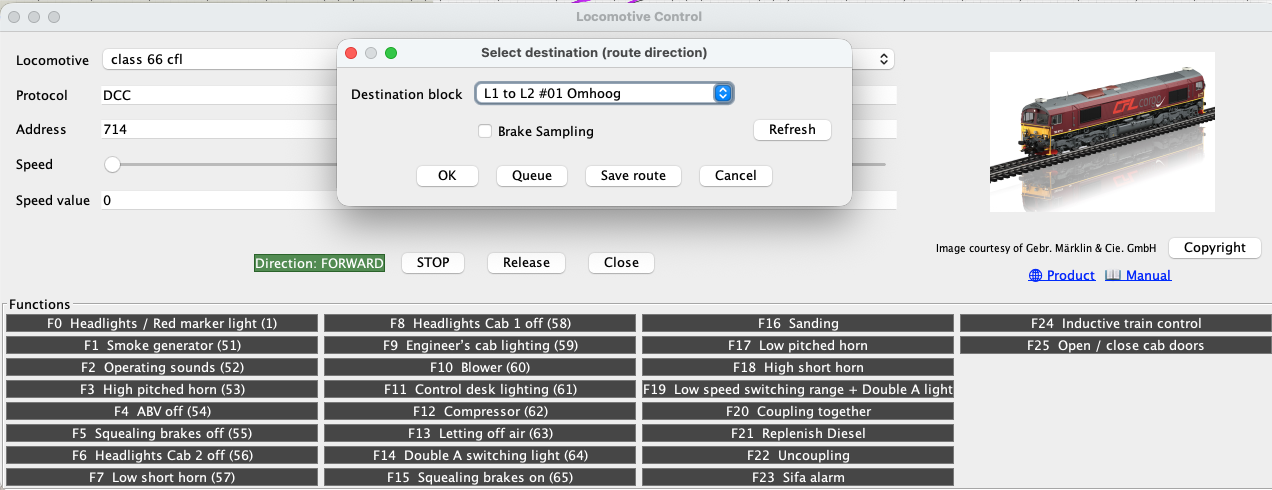
Destination blocks and Refresh
The destination dropdown is deliberately not a list of every block. RailKernel follows the graph from the train’s current block using the present turnout and accessory positions and lists the blocks reachable in that physical state. If you operate a turnout while the dialog is open, press Refresh to calculate the list again. This makes Simple Move useful for a direct, predictable movement through the route that is already set on the railway.
Run, Queue, Save and Brake Sampling
- OK
- Starts the movement after RailKernel has reserved a safe corridor and set the required protected accessories. The train continues block by block until the selected destination is reached.
- Queue
- Stores the movement without immediately reserving or driving it. Queued trains appear in the Train Monitor and can be started individually or together when the operator is ready. The queue is persisted with the project.
- Save Route
- Stores the currently selected Simple Move path as a named route so that it can later be inspected, edited or reused.
- Brake Sampling
- Starts the four-run calibration procedure described under Trains and Calibration. It requires a cyclic route back to the same station block, a positive station dwell time, equal route heights and a determinable direction. A calibration run cannot be queued.
Supervise the train in Train Monitor
The Train Monitor is the operational overview for running, queued, dwelling and paused trains. It shows the current and destination blocks, movement state, speed and reservation progress. Queued movements can be started there; paused movements explain why they are waiting and can resume when the required corridor becomes available. The canvas provides the geographical view, while Train Monitor provides the operational state machine behind it.
Route Move
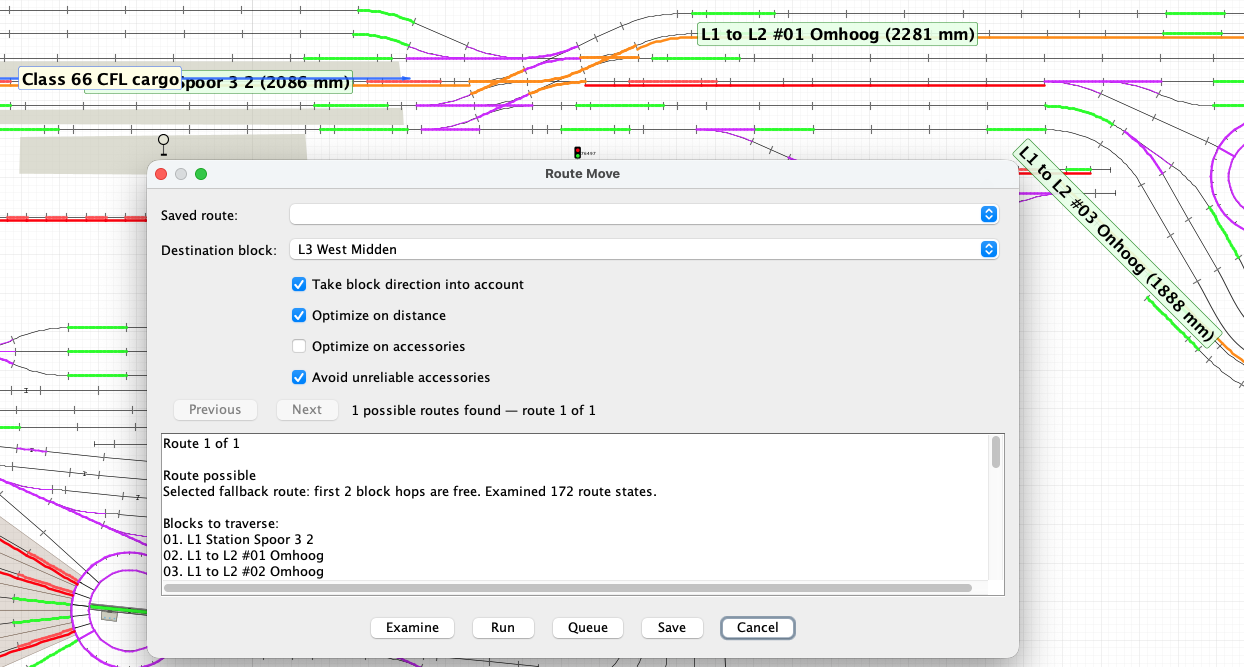
Route Move is used when the destination matters more than the current turnout positions. You can select a previously saved route, or select a destination block and ask RailKernel to examine the graph for new alternatives. A saved route retains its defined block order, direction policy, accessory requirements and feedbackless connecting legs. A calculated route is built from the live project geometry and can be run immediately, queued or saved under a name.
How route calculation works
RailKernel performs a bounded breadth-first graph search over states consisting of a block and its possible exit side. It never revisits a block within one candidate path. The search first prefers routes on which all blocks are free, then routes whose first two block hops are free, and only then a physically possible route that currently contains occupied or reserved blocks. Every candidate must produce a complete plan containing the blocks, intervening feedbackless track lengths and required accessory states. The candidates are then ranked using the selected optimization options. Search and ranking run in the background so the user interface remains responsive, and a state limit prevents an unexpectedly complex graph from consuming unlimited time.
Route calculation options
- Take block direction into account
- Rejects candidates that enter or traverse direction-restricted blocks incorrectly, including the destination block. Disable it only when block direction is intentionally irrelevant for this examination.
- Optimize on distance
- Ranks shorter physical routes first. The calculation includes block lengths and the measured geometry of feedbackless track and accessories between blocks.
- Optimize on accessories
- Prefers candidates requiring fewer protected accessories. When combined with distance, RailKernel balances physical length against accessory count.
- Avoid unreliable accessories
- Ranks routes containing accessories marked unreliable behind alternatives that avoid them. This is a preference rather than a promise that an unreliable accessory can never occur.
Browse and preview alternatives
Press Examine to calculate alternatives. Previous and Next browse the resulting set, while the details area reports route length, block count, required accessories, unreliable accessories, the occupancy preference used and the number of examined states. Each selected candidate is immediately previewed on the main canvas and slice viewers. Blocks, connecting track and accessories receive the configured reservation colour, and temporary block labels make the complete path readable. The preview changes as you browse and disappears when the dialog is closed or another action clears it; no reservation or accessory command is issued by previewing.
What happens when a route runs
Run first validates the selected plan against the current railway state. RailKernel reserves a forward corridor of blocks and the required accessories before switching those accessories and allowing the locomotive to move. Feedback transitions advance the train’s digital position, release trailing infrastructure and extend the corridor ahead. Block speed limits, calibrated movement and braking data, stop positions and station dwell are applied as appropriate. If the next safe corridor cannot be obtained, the train pauses instead of entering unreserved railway. Hardware can still fail, so automatic operation must be supervised and an emergency stop must remain available.
Saved routes remain inspectable
A calculated alternative can be saved and later selected directly in Route Move or opened in the Route Editor. The editor shows every block, feedback and accessory leg, including feedbackless distances, and its Preview button displays the route without running it. Re-examine saved routes after physically changing blocks, connections, feedbacks or accessories: a route is an operational definition built on top of the project geometry, not a substitute for that geometry.